Feature Rating and Feedback
The application may ask you to rate a feature after you have used it several times. This helps the development team understand what works well and what needs improvement. You can also send feedback manually at any time from the Help menu.
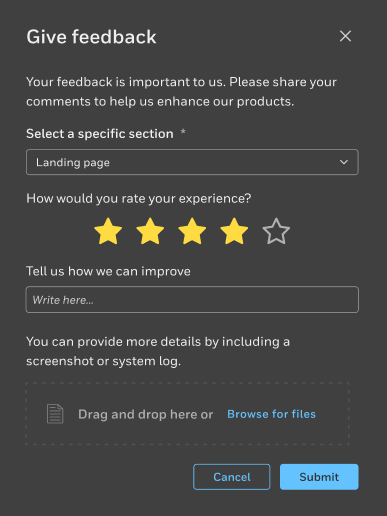
When the rating prompt appears
- A small window appears asking you to rate the feature you just used. The number of stars reflects how satisfied you were with the feature.
- Select the number of stars that best matches your experience. This step is optional—if you do not want to rate the feature, you can close the prompt.
Add a comment
- After selecting a rating, you can type a short comment. This helps explain what worked for you or what was confusing.
- If something did not behave as expected, describe what happened. Clear, simple comments help the team reproduce the issue.
Add images or video
- You can attach a screenshot or a short video to show what you saw on the screen. These attachments are optional but useful when reporting an issue.
- Select the option to upload your file, then choose the image or video from your device.
Send feedback manually
- Open the Help menu in the left navigation panel.
- Select the option to send feedback. This opens the same form used for the rating prompt.
- Enter your comment and attach files if needed. Submit the feedback when you are ready.
After submitting your feedback
Your message is sent directly to the support team. You will not receive a reply in the application, but your input is reviewed and helps improve future updates.