Fleet Management
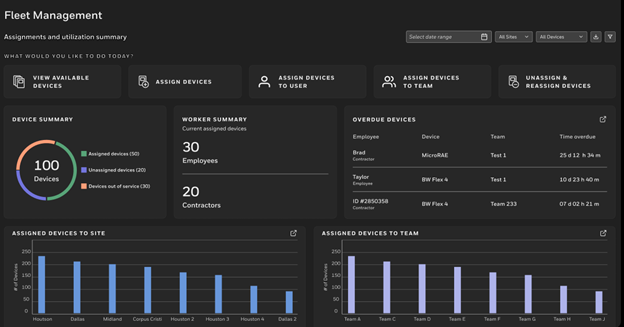
The Fleet Management lets you view and manage all your devices.
Safety Suite EWAS
You can check device availability, see which devices are already assigned, and update assignments when devices need to be adjusted.
Key capabilities
- View devices grouped as Available Devices, Devices assigned to users, or Devices assigned to teams.
- Search for a device by Serial Number or use filters to narrow down the list.
- Assign a device to a user or team when equipment needs to be issued.
- Unassign a device when it is returned or no longer in use.
- Reassign a device when it must be moved from one person or team to another.
- Review device distribution across teams and sites.
Main actions
- Assign Devices: Select one or several devices and assign them to a user or team.
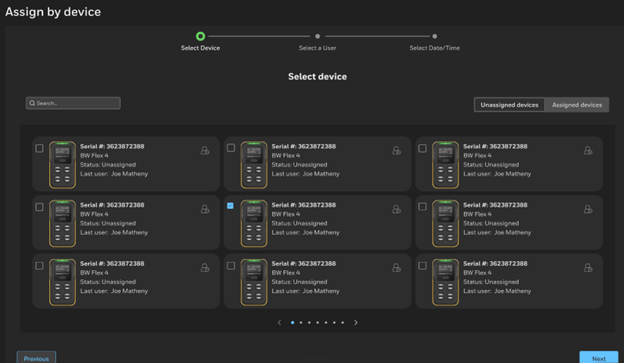
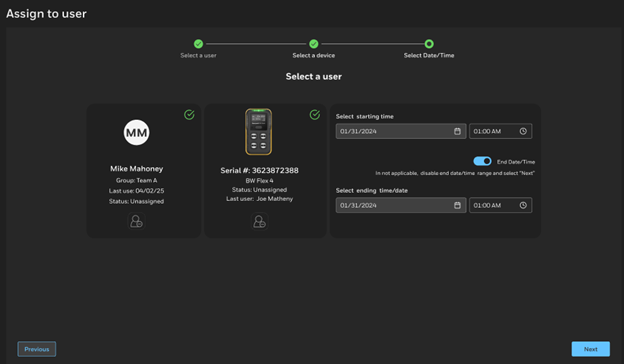
Assign Devices to User:Use this feature to assign a device to a user.
Assign Devices to Team:Use this feature to assign a device to a team.
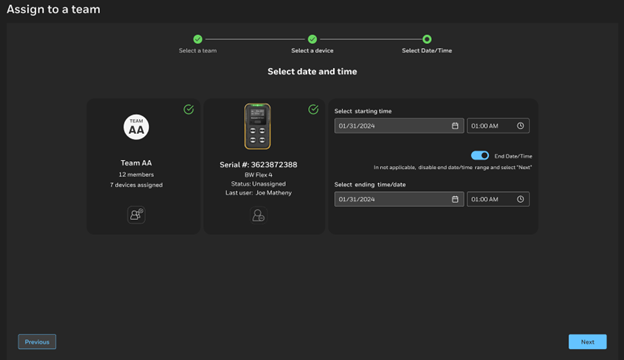
NOTE: You can select the date and time after you choose the user or team.
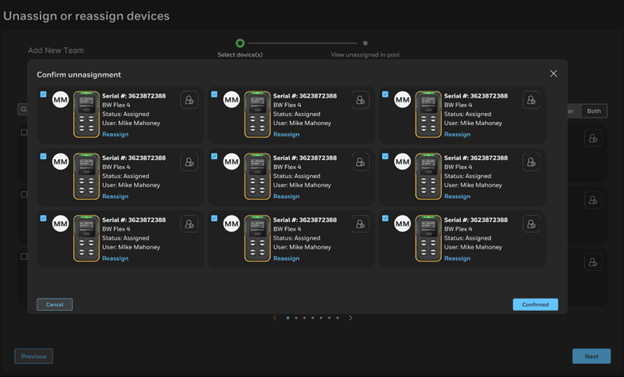
- Unassign or Reassign: Change the device assignment to another user or team.
Available widgets
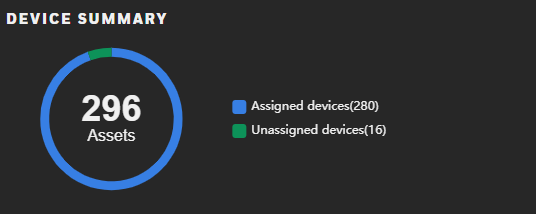
- Device Summary: Shows how many devices are assigned and how many are unassigned.
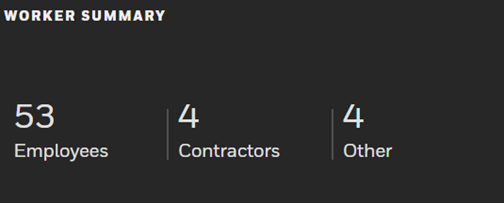
- Worker Summary: Shows the types of employees in your organization.
- Overdue Device: Shows which devices have overdue compliance and identifies the responsible assignee.

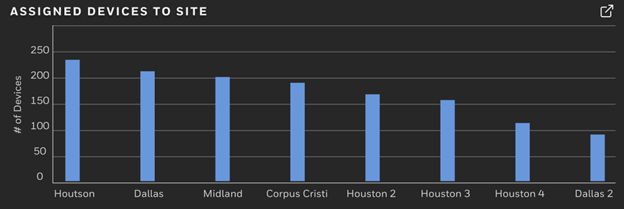
- Assigned Devices to Site: Shows how many devices are assigned to each site.
- Assigned Devices to Team: Shows how many devices are assigned to each team.
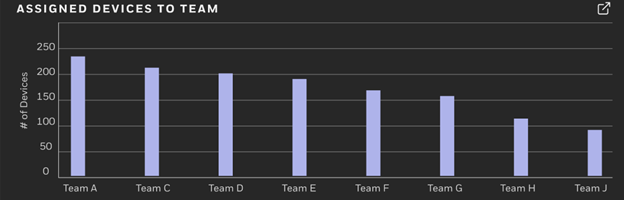
- Device Summary: Shows how many devices are assigned and how many are unassigned.
DC App
The DC App lets you manage devices from a mobile device.
You can assign, unassign, or reassign equipment without needing to access the web version.
All changes sync automatically with Safety Suite EWAS.
Key capabilities
- View the list of devices available in your fleet.
- Assign a device to a user or a team from your phone.
- Unassign a device when it is returned or no longer in use.
- Reassign a device if it needs to be issued to someone else.
- Add new users or teams directly from the app when needed.
Main actions
- Assign: Select a device, choose a user or team, and confirm the assignment.
- Unassign: Remove an assignment so the device becomes available again.
- Reassign: Move a device from one user or team to another.
- Set assignment dates: Specify start and end dates when required for tracking.
Add Device (Mobile)
Use the mobile app to register a detector in your Safety Suite inventory.
Once the device is added, you can assign it and track it like any other asset. The app offers two methods: Bluetooth and QR code.
Add a device using Bluetooth
- Turn on the detector and make sure Bluetooth (BLE) is enabled. This allows the app to detect the device automatically.
- In the app, open the option to add a device and select Bluetooth. The app scans for nearby detectors.
- When the detector appears in the list, select it. The list only shows devices that are broadcasting BLE.
- If the app asks for a pairing code, enter the code shown on the detector's screen. This confirms you are pairing with the correct device.
- Review the device information and confirm the addition. The detector is now part of your fleet and syncs automatically with the web version.
Add a device using a QR code
- In the app, select the QR method. This opens the camera so you can scan the detector’s code.
- Scan the QR label on the back of the detector. The label contains the device identifier and model.
- The app displays the device information it extracted. Verify the details before adding it.
- Confirm to complete the process. The device is added immediately to your Safety Suite EWAS inventory.
After adding the device
- Open the device list and use filters (for example, model, site, or assignment status) to find the new device.
- Select the device and assign it to a user or team if needed. Assignments let you track who is responsible for the detector.
- If required, add start and end dates for the assignment. This helps track when the device was issued and when it should be returned.