Change license manually
Method a - License Management
-
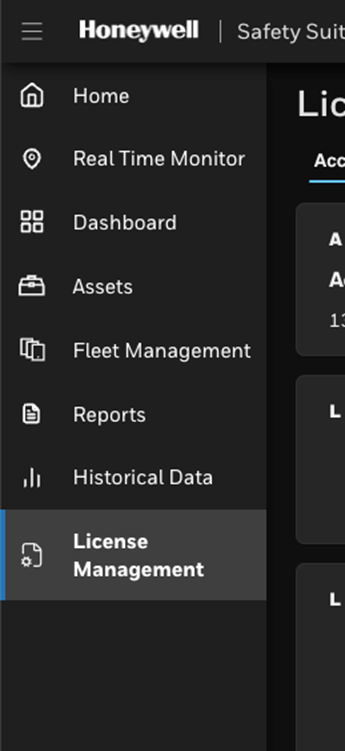
Go to the License Management module.
-
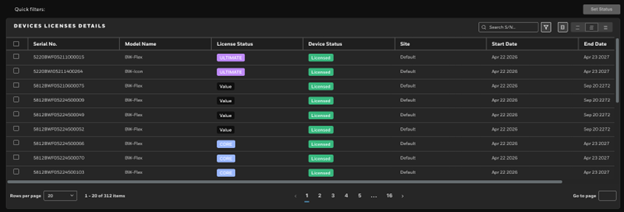
Locate the Device Licenses Details table.
-
Select the intended device or devices, and then click Set Status.

-
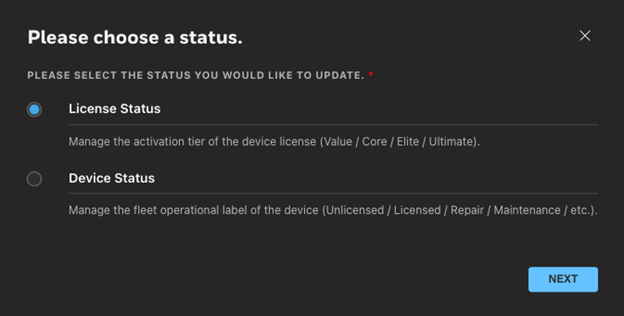
Select License Status, and then click Next.
-
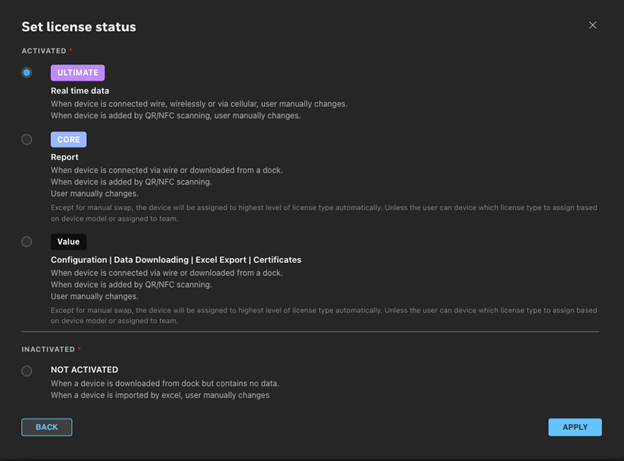
Assign a License to the device, and then click Apply.
Method b - Asset Management List
-
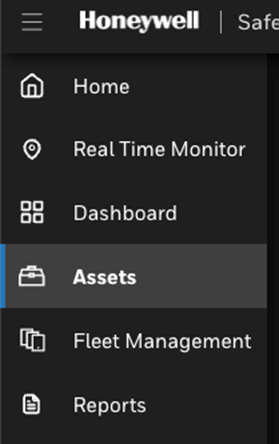
Go to the Asset table.
-
Select the device or devices, and then click Set Status.

-
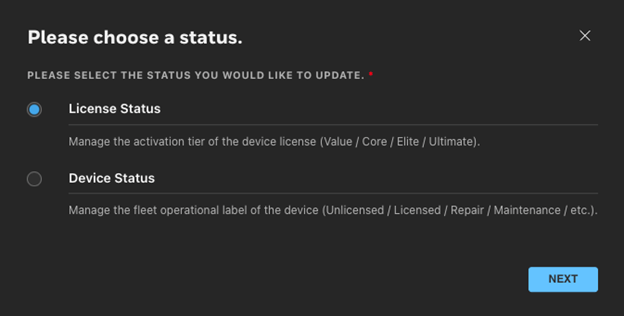
Select License Status, and then click Next.
-
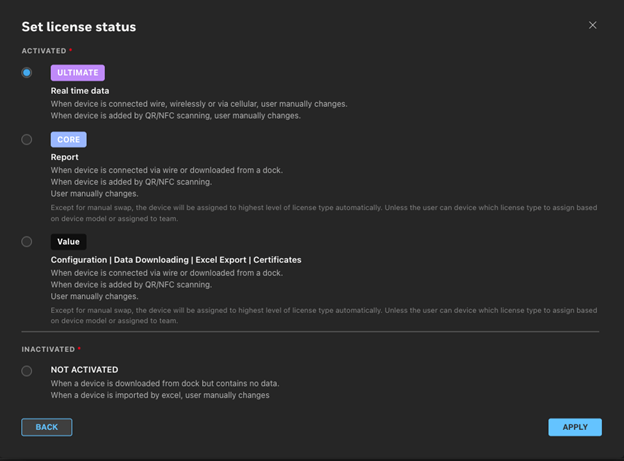
Assign a License to the device, and then click Apply.
Default License Assignment Logic
When a device is added or connected to Safety Suite, the system assigns a default license status based on the logic in the table.
| License Used | License Type | Functional Control | Swap Rules | ||
| Activated Ultimate | Y | Ultimate |
Elite +
|
When the device is connected via wired connection, wirelessly, or via cellular connection. The user manually changes it. When the device is added by QR or NFC scanning. The user manually changes it. |
|
| Activated Elite | Y | Elite |
Core +
|
When device is connected via wired connection or downloaded from a dock. When device is added by QR/NFC scanning. The user manually changes it.
|
Except for a manual swap, the device is automatically assigned the highest-level license type. The user can also decide which license type to assign based on the device model or the assigned team. |
| Activated Core | Y | Scale |
Value +
|
||
| Activated Value | Y (Free) | Value |
|
||
| Not Activated | N | N/A | N/A |
When a device is downloaded from dock but contains no data. When device is imported by excel. The user manually changes it. |
|
| Expired | N | N/A | N/A | When a license is expired. |
|
*Device status is only a label that indicates the device’s working status. It does not control or consume any license assignment.